
Everbility in Action
Can I create a table by asking Everbility to make one?
How to Instruct Everbility to make tables
Yes, you can!
Everbility allows you to generate tables simply by adding clear instructions within your template - so you can reuse the same prompt anytime - or while customising documents in Writer. The steps below explain how to add a table prompt into a template.
Follow these instructions below:
First:
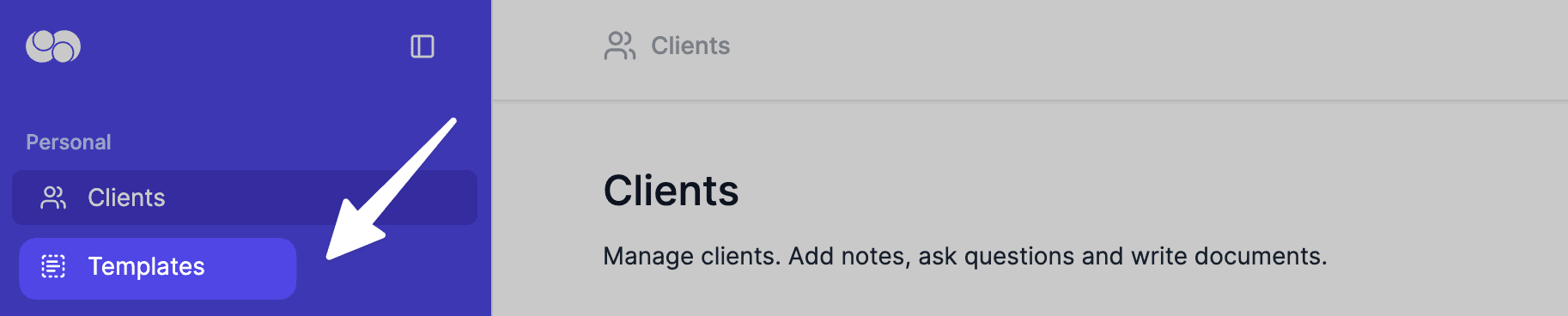
- click
Templatesand choose to create a new template/ re-enter an existing template
If you're new to creating templates or using a Community Template, click here: Creating a Template
or 2. Head into the document where you would like to add the table.
Describe what you need from the table that Everbility is going to create for you. Clearly outline the structure, including:
- Column names
- Row details
- Any specific formatting preferences
Here are three examples of instructions:



Mark the Request as an Instruction
Highlight any of the text in the instruction and click on the Everbility icon at the top or in the floating toolbar.


Generate the Table in Writer
When you're ready to generate the table to include your client's information, click on Writer. Select this template, the client you are creating the document for and the notes you want to use.
If you're new to using Writer, click here: Write a Document
Additional Tips
If Everbility is having difficulty understanding your instructions, use clear headings and clearly label each column and row for easy readability.
Keep Formatting Simple – Complex tables may need adjustments after exporting.
Test Different Layouts – If your table isn’t displaying as expected, try rewording the instruction.
Feeling stuck? Book a demo here