
Clients
Archive Clients
Hide clients from your dashboard without deleting their data.
What happens when you archive a client?
Archiving a client removes them from your active client list, but it does not delete their notes, documents, recordings, or other client data.
You can restore archived clients later, or permanently delete them from the Archive page if needed.
Archive a Client
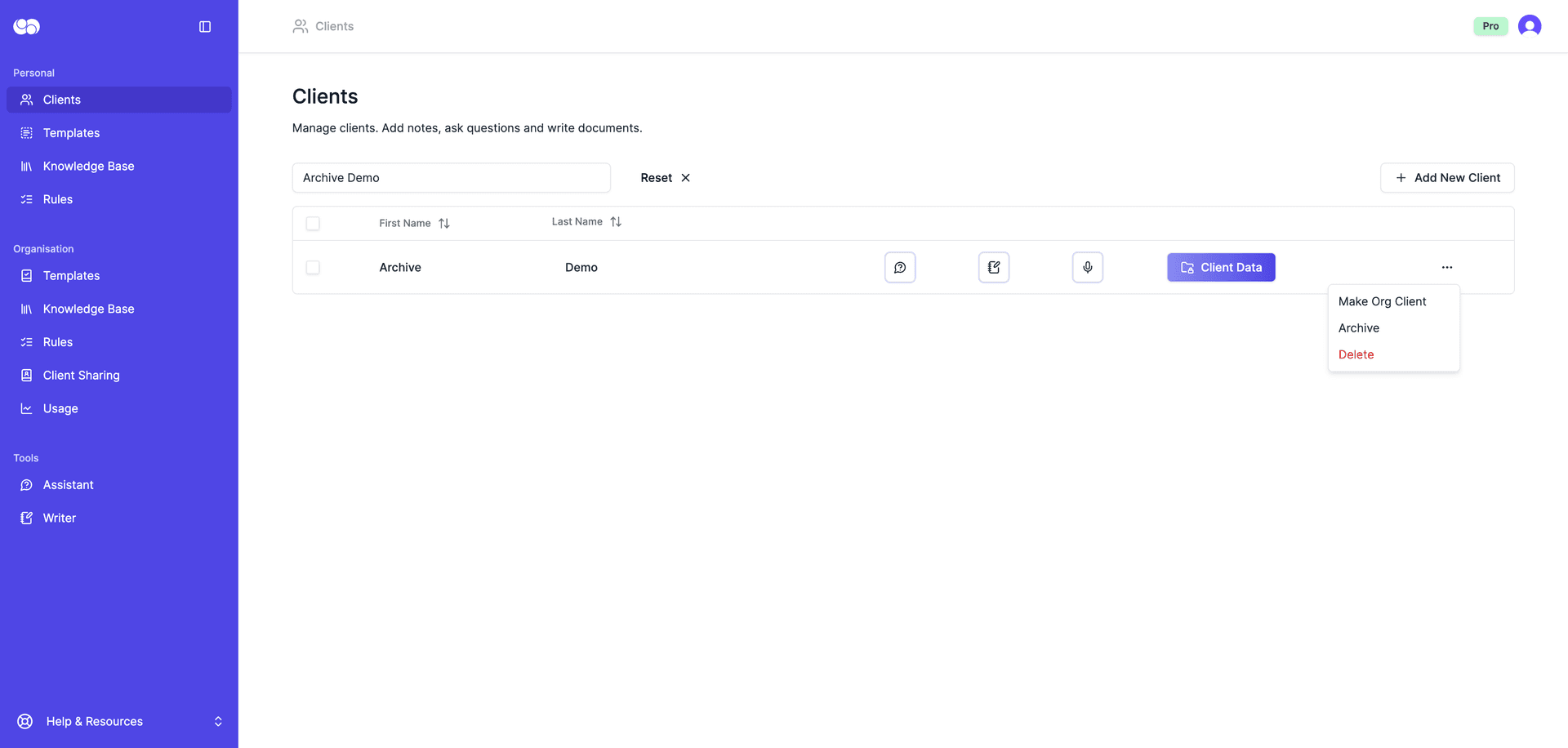
Go to Clients in the lefthand menu. Find the client you want to archive, click the three dots in their row, and then click Archive.
Click Archive Client to confirm.
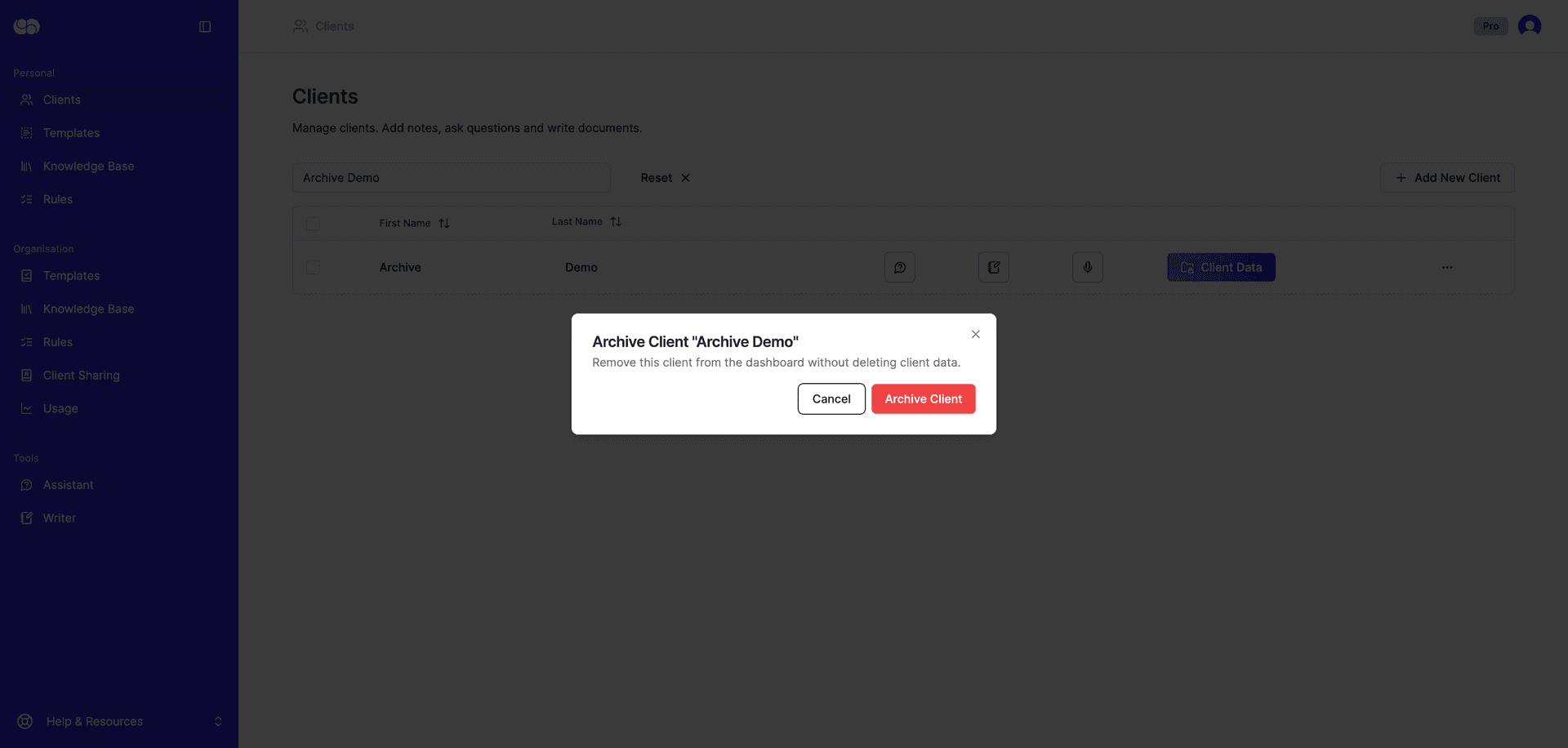
After archiving, the client will disappear from your active client list.
Archive Multiple Clients
If you want to archive more than one client at a time, select the tick boxes next to the clients you want to hide.
Then click Archive Selected and confirm by clicking Archive [number] Clients.
Restore or Delete an Archived Client
To view archived clients, open your user menu in the top right corner and click Manage account. Then click Archive in the lefthand menu.
On the Archive page, you can:
- click
Restoreto move a client back into your active client list - click
Deleteto permanently delete the client
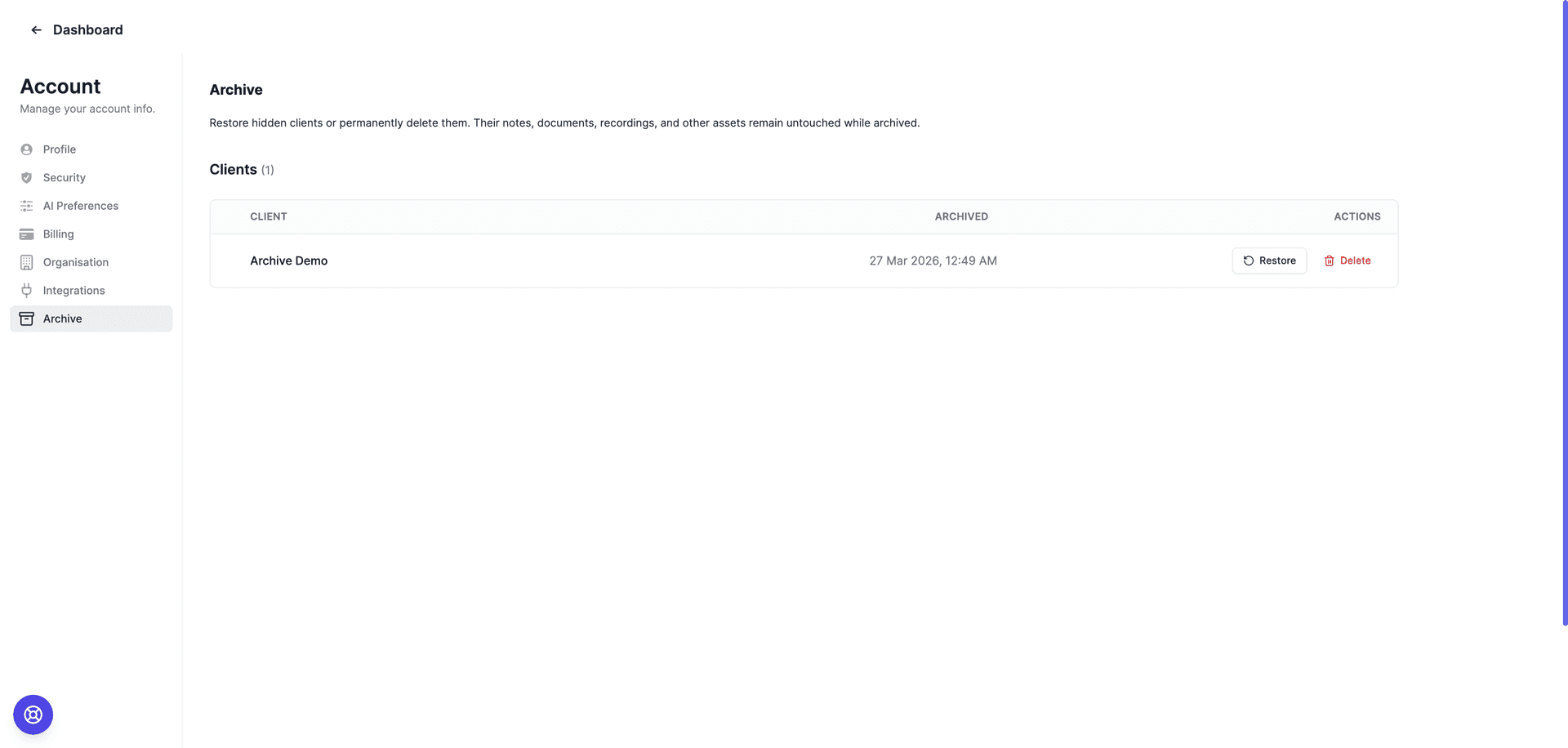
Deleting a client from the Archive page will permanently delete their client data. You will be asked to type delete to confirm.
Feeling stuck? Book a demo here