
Clients
Phone Call Recording
Record a phone call on Android or iPhone, then bring the audio or transcript into Everbility for transcription and document generation.
Before recording a call, make sure everyone on the call has agreed and that recording is allowed in your location. Device support and feature availability can also vary by phone model, operating system, country, region, carrier, and language.
Android
Google provides the official instructions here: Use the Phone app to record calls.
Google says call recording is only available on supported devices and carriers, with the latest Phone app, and in supported countries or regions.
To record a call on Android using the Google Phone app:
- Open the
Phoneapp. - Make or receive a call.
- Start recording from the call screen.
- Stop the recording when the call is finished.
Google also notes that both people on the call are notified when recording starts and stops.
When the call is finished, you can open the recorded call in the Phone app and use the Share option to send the audio file to your computer or another app.
iPhone
Apple provides the official instructions here: Record and transcribe a call on iPhone.
Apple says call recording is only available in some countries, regions, and languages. On supported iPhones:
- Open the
Phoneapp and make a call. - During the call, tap
More, then tapCall Recording. - Stop the recording when you are done, or just hang up.
Apple saves the recording in the Notes app inside the Call Recordings folder.
In supported regions and languages, Apple can also create a transcript for the call. From the recording in Notes, you can:
- Copy the transcript
- Save the audio file
- Share the audio file
Apple recommends checking the transcript before relying on it, as it may not be perfectly accurate.
Use the Call in Everbility
After you have recorded the call on your phone, there are two easy ways to use it in Everbility.
Option 1: Upload the audio for transcription
If you want Everbility to transcribe the call for you:
- Save or share the audio recording from your phone to your computer.
- Open Transcribe Client Notes in Everbility.
- Upload the audio file.
- Let Everbility transcribe the recording and use that note for generating your document.
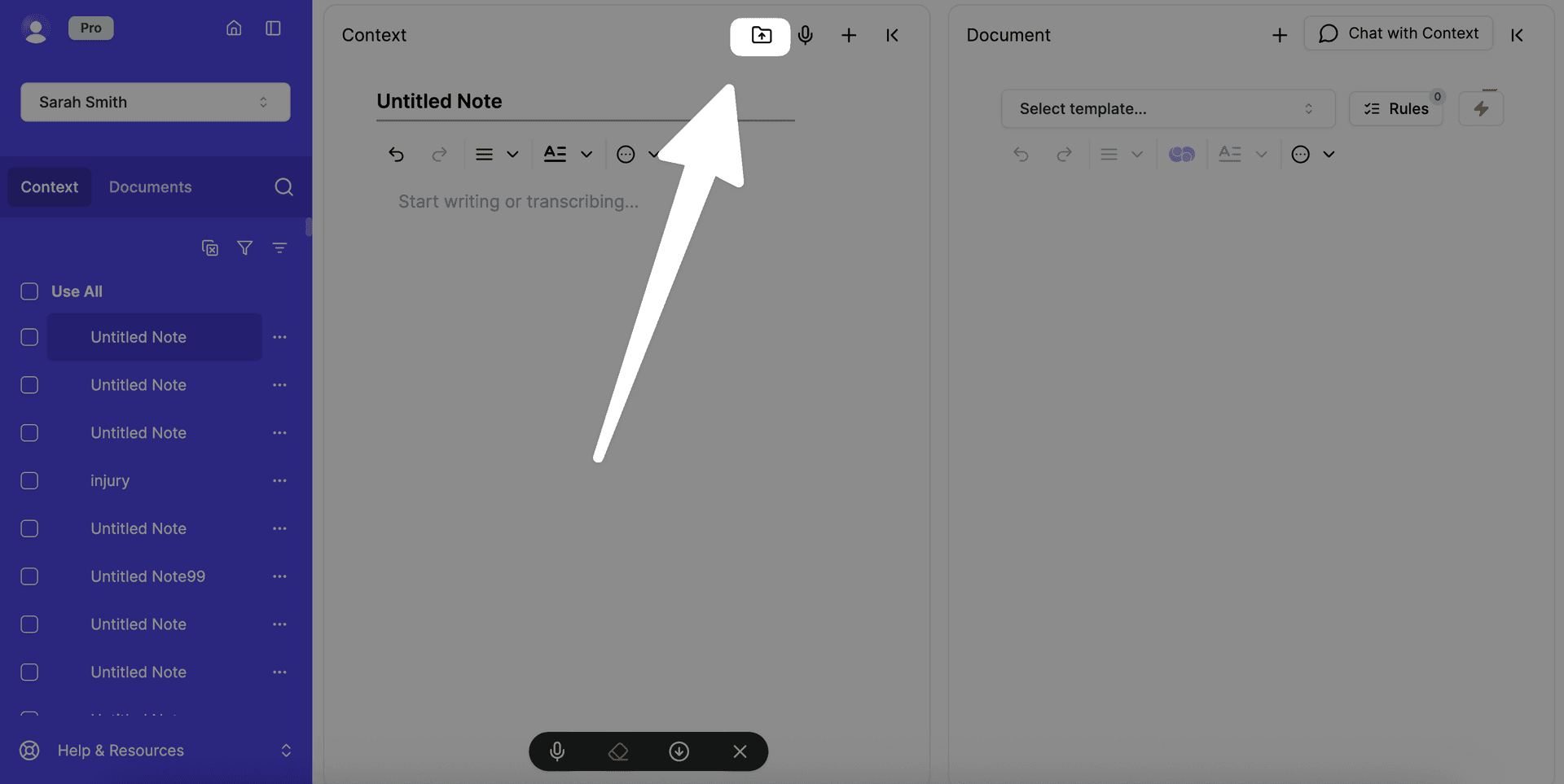
Currently there is a 195MB limit per audio file in Everbility.
Option 2: Copy and paste the transcript
If your phone has already created a transcript, you can paste that text straight into Everbility:
- Copy the transcript from your phone.
- Open Add Client Notes or open the client's context in Writer.
- Paste the transcript into a new note.
- Use that note when you Write a Document.
This is often the fastest option when your phone has already created a good transcript.
Which Option Should I Choose?
- Upload the audio if you only have the recording, or if you want Everbility to do the transcription for you.
- Paste the transcript if your phone has already created one and it looks accurate.
Feeling stuck? Book a demo here