
Troubleshooting
Fix Microphone Permission Errors
If Everbility shows Permission denied or transcription does not start, your browser is usually blocking access to your microphone. This guide walks through the fix in Chrome, Safari, and Edge, plus what to do if you use another browser.
Video Walkthrough
This video shows the Chrome reset flow on Mac.
What the Error Looks Like
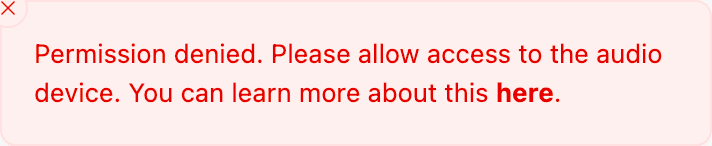
If Chrome has blocked microphone access, you may see this message when you click Start transcription in Writer.
Google Chrome
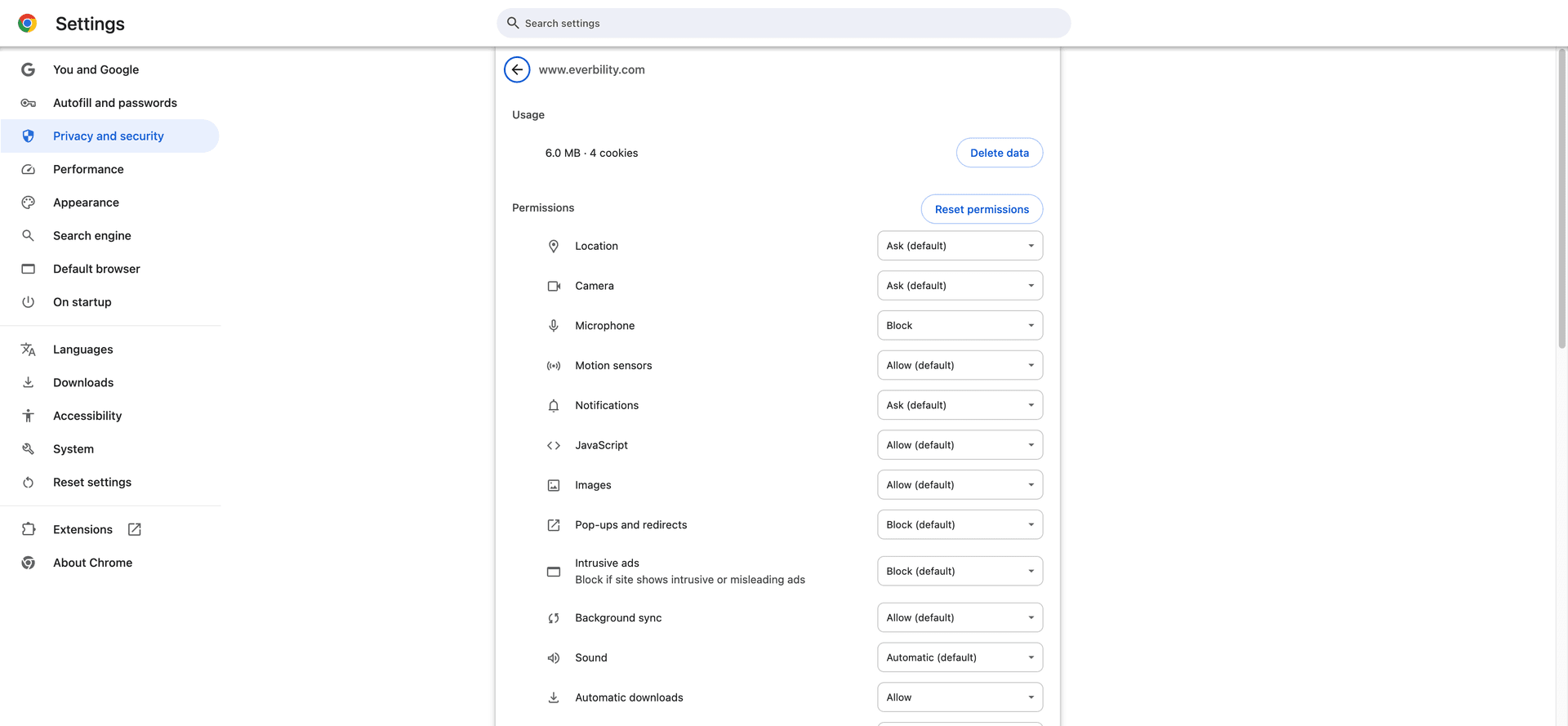
If you are using Chrome, you can either allow microphone access for www.everbility.com or reset the saved permission and let Chrome ask again.
- Open Chrome
Settings. - Select
Privacy and security. - Select
Site settings. - Select
Microphoneand make sure sites can ask to use your microphone. - If
www.everbility.comis blocked, open its site settings and changeMicrophonetoAllow, or clickReset permissions. - Refresh Everbility and click
Start transcriptionagain.
Need Google's full browser instructions? Use your camera and microphone in Chrome
Microsoft Edge
- Open Everbility in Edge.
- Click
View site informationto the left of the address bar. - Under
Permissions for this site, changeMicrophonetoAllow. - If you want to reset it from Edge settings instead, open
Settingsand go toSite permissionsorCookies and site permissions, then open the saved permission forwww.everbility.comand changeMicrophonetoAllow. - Refresh Everbility and try the transcription again.
Need Microsoft's full instructions? Manage website notifications in Microsoft Edge and Troubleshoot camera and microphone permissions in Edge
Safari
- Open Everbility in Safari.
- Click the page settings button in the Smart Search field, then choose
Website Settings. - Set
MicrophonetoAllowfor Everbility. - If you want to review saved permissions, open
Safari>Settings>Websites, clickMicrophone, then changewww.everbility.comtoAllow. - Refresh Everbility and try the transcription again.
If Safari still does not have access to your microphone, open Apple menu > System Settings > Privacy & Security > Microphone and make sure Safari is turned on.
Need Apple's full instructions? Customise settings for each website in Safari on Mac, Change settings in Safari on Mac, and Control access to the microphone on Mac
If You Use Another Browser
If you use Brave, Firefox, Arc, Opera, or another browser:
- Search online for
[browser name] microphone site permissions - Search online for
[browser name] reset site permissions - Search online for
[browser name] allow microphone for website - Add your operating system if needed, for example
Brave microphone permission Mac
If your browser is based on Chromium, such as Brave or Arc, the Chrome steps above are often very similar.
After changing permissions, refresh the Everbility tab. If it still does not work, fully close and reopen the browser, then try starting the transcription again. If you're still having issues, please reach out to support@everbility.com
Feeling stuck? Book a demo here