
Account Settings
DOCX Export Styles
Download the default DOCX style, update it in Word, and upload it back to Everbility to add things like letterheads, logos, headers, footers, fonts and margins to your exported documents.
Watch the Demo That Matches Your Setup
If you already have a style guide set up in Word
If your clinic or practice already has a Word file with the formatting you want, this demo shows how to use that in Everbility.
If you do not have a style guide set up in Word
If you are starting from scratch, this demo shows how to use Everbility's default DOCX style file and customise it in Word.
Choose Your Starting File
If you do not already have a style guide set up in Word, the easiest way to create your own DOCX export style is to start with Everbility's default file.
To download it:
- Click your avatar in the top right corner.
- Open
AI Preferences. - Go to
DOCX Export Styles. - Click
Download default.
Open that file in Microsoft Word and make your changes there.
For the best results, start with the default file instead of a blank Word document.
If you already have a Word document that your practice uses as a letterhead or report layout, that is often a good place to start instead.
Yes, This Supports Letterheads and Branding
DOCX export styles can be used for:
- clinic letterheads
- logos
- headers and footers
- page margins
- fonts and heading styles
- branded report layouts
Update Your Styles in Word
In Word, open the Styles Pane and update the styles you want Everbility to use.
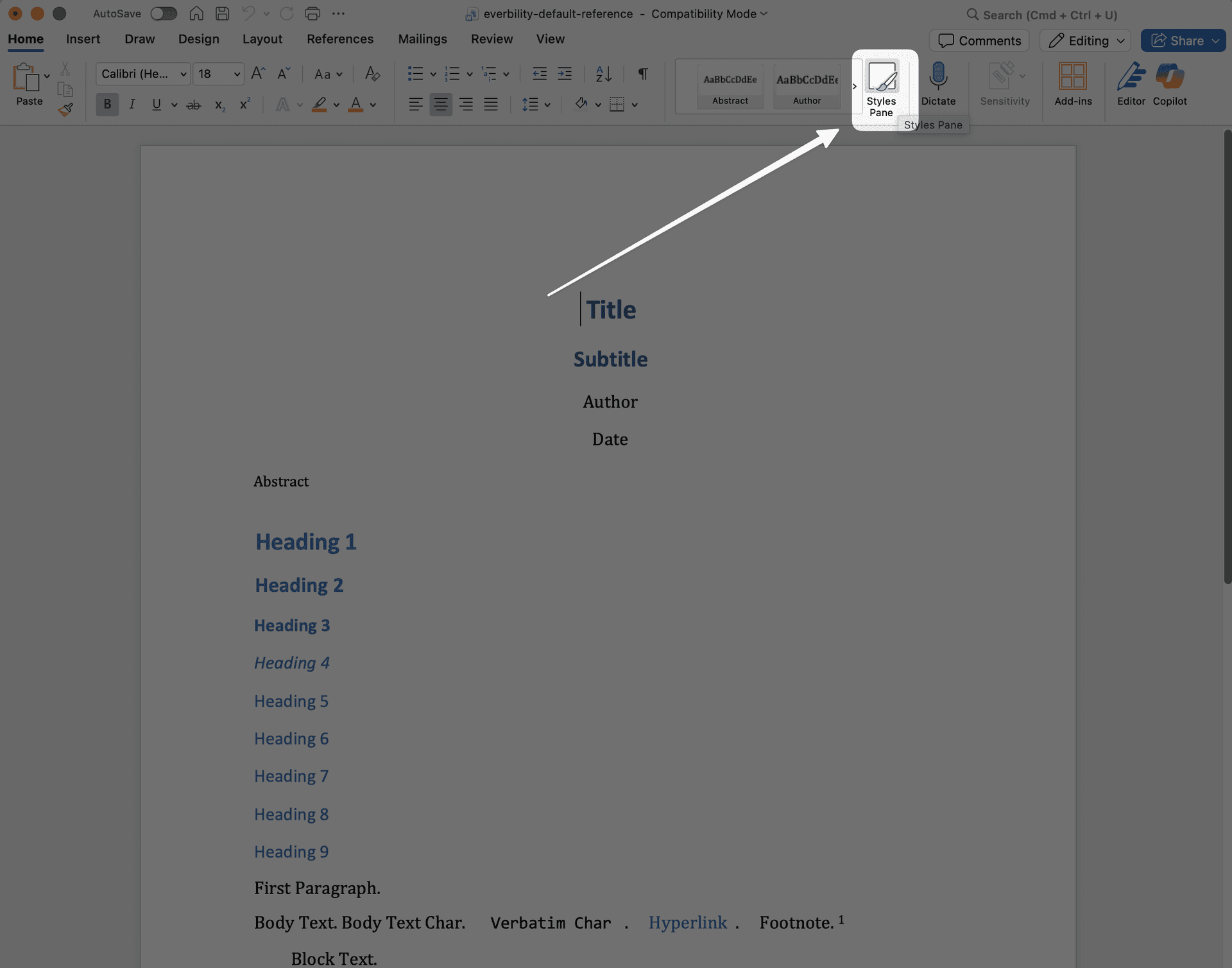
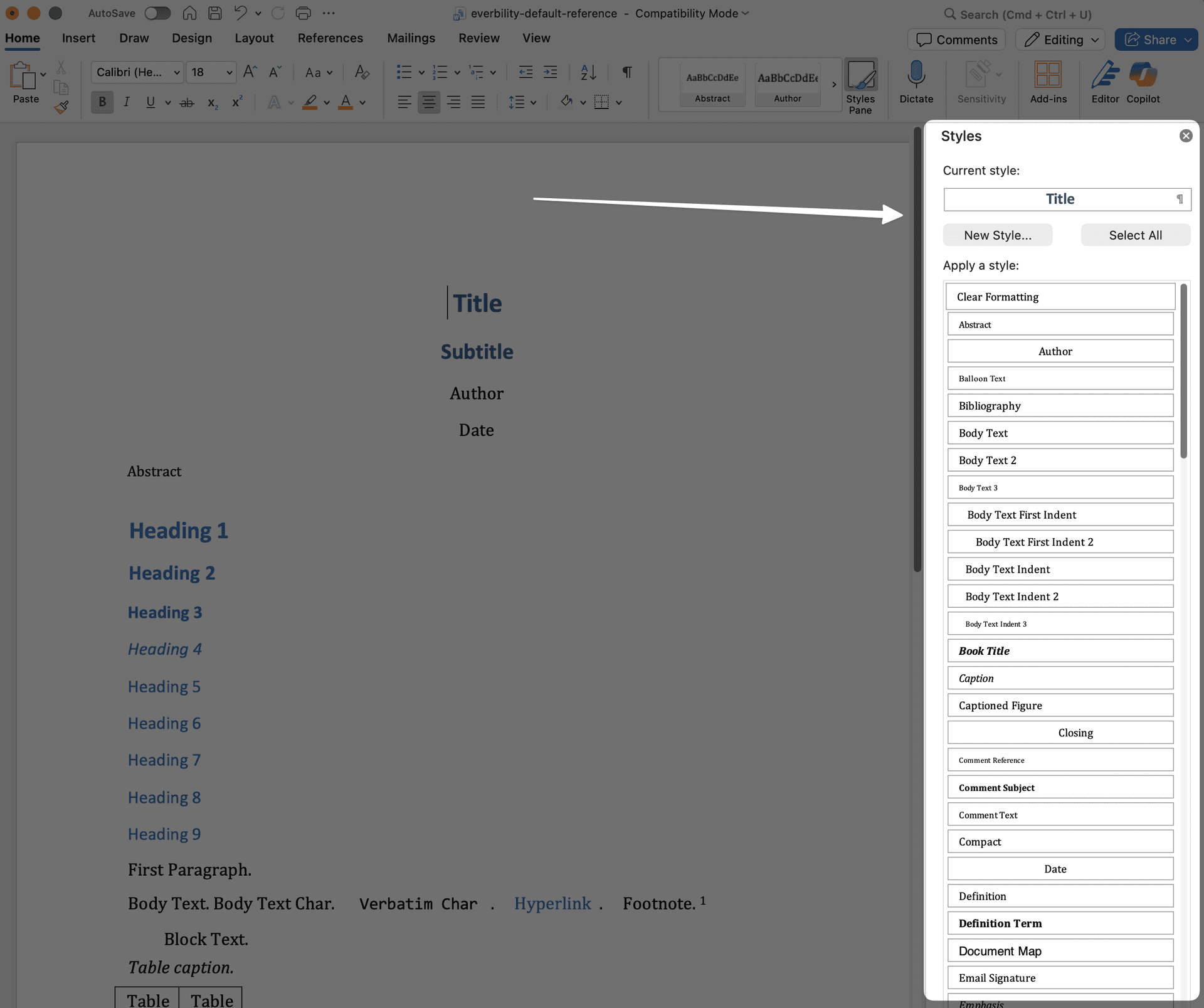
The most useful styles to update are usually:
NormalHeading 1Heading 2Heading 3- table styles if you use tables often
For each style:
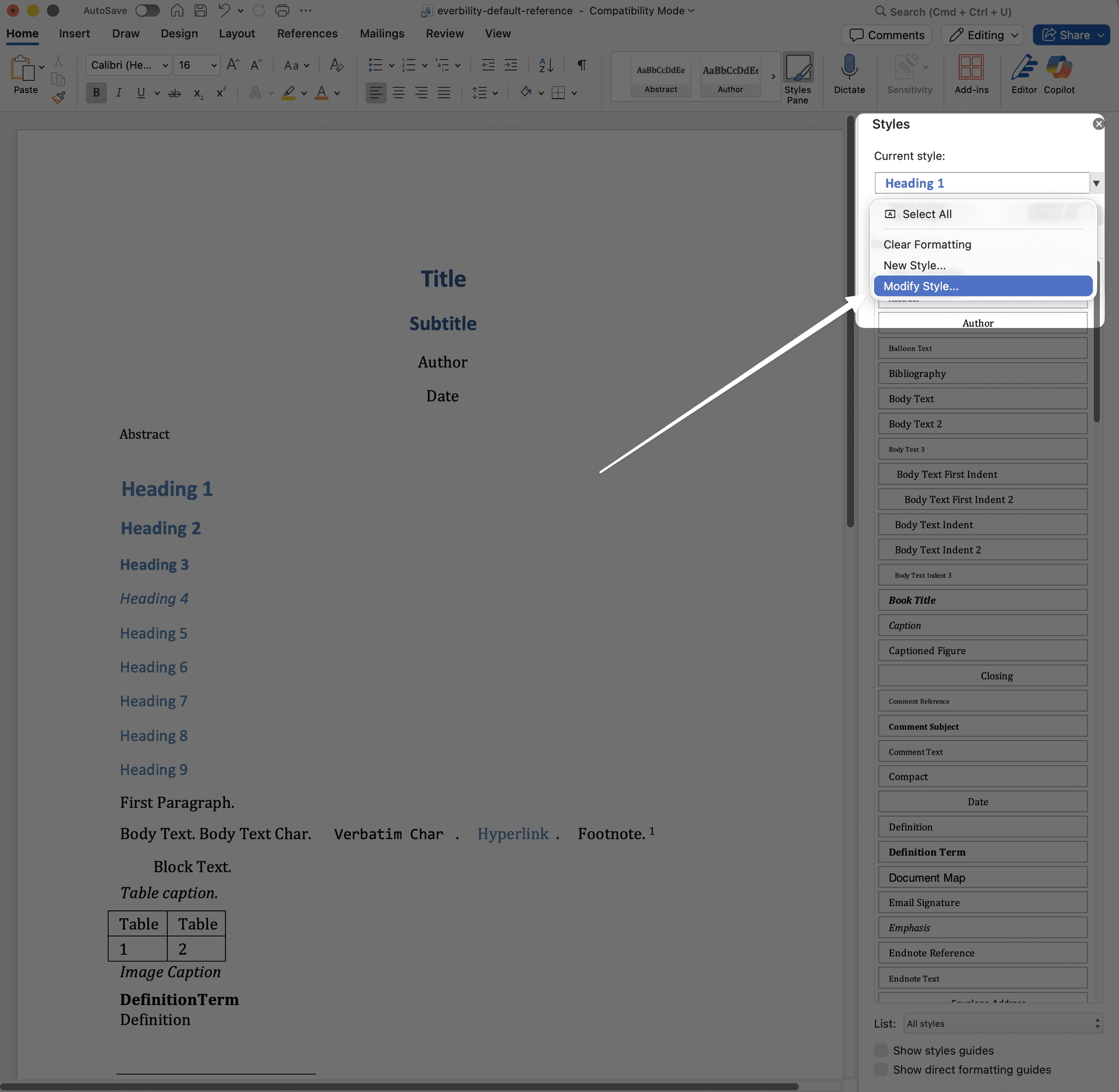
- Open the style menu in Word.
- Select
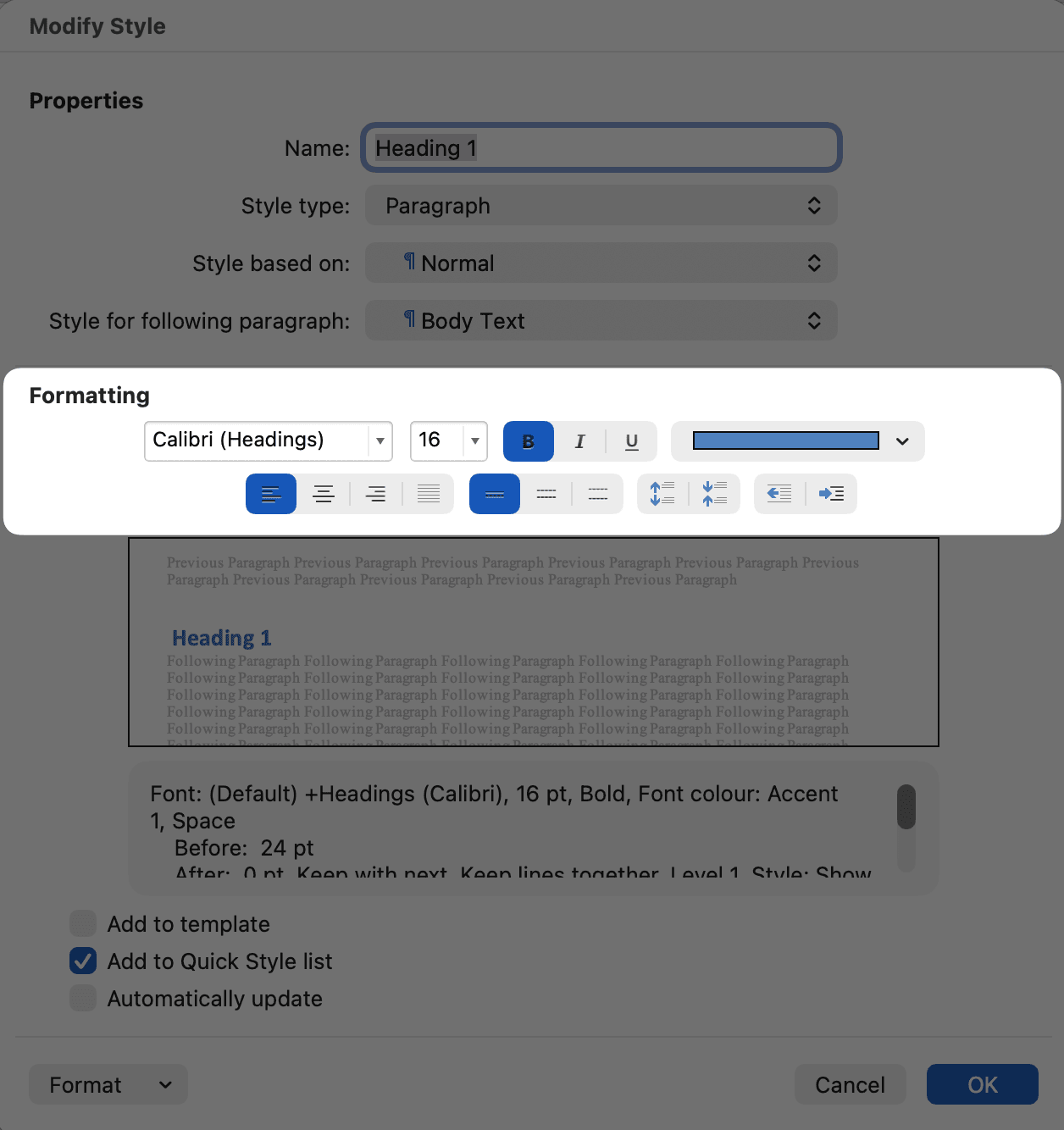
Modify Style. - Update the font, size, colour, spacing or other formatting.
- Save your changes.
What Parts of the File Matter?
The important thing to know is this:
- Everbility uses the styling from the file.
- Everbility uses the page setup from the file.
- Everbility does not use the sample wording inside the file.
In plain language, that means you should focus on things like:
- fonts
- heading styles
- margins
- headers
- footers
- logos
- page size
You do not need to type out a sample report in this file unless it helps you set up your layout.
Think of this file as your Word formatting master. Everbility uses the look and layout from the file, not the example wording inside it.
Save the File
When you are done:
- Save the file as a
.docx. - Give it a clear name, such as
Clinic LetterheadorOT Report Style.
Upload the File to Everbility
To upload it for yourself:
- Go to
AI Preferences. - Open
DOCX Export Styles. - Add a style name if you want one.
- Choose your
.docxfile. - Click
Upload style.
If you are an organisation admin, you can also upload a shared style for your team in the organisation tab.
Use the Style When Exporting
When you export a document from Writer:
- Click the export button.
- Select
Docx. - Choose the style you want to use.
You can choose:
Everbility default- one of your personal styles
- a shared organisation style if one has been uploaded for your team
Tips
- Test your style on a short document first.
- If something looks wrong, go back to Word and update the style definitions rather than editing each document one by one.
- If you only want to change the final formatting after export, you can also use Formatting Documents for Colours, Logos & Fonts Outside of Everbility.