
Templates
Fill PDF Forms with AI
Upload a PDF form once, let Everbility fill supported fields using your client context, then review the answers and download the finished PDF.
PDF AI Fill is useful for referral forms, treatment request forms, checklists, and other PDFs you regularly complete by hand.
If you want to add a PDF as client context for Everbility to read, use Upload PDFs. This guide is for blank PDF forms that you want Everbility to fill in for you.
Before You Start
PDF AI Fill works best when:
- you have already selected the correct client in Everbility
- that client already has notes, recordings, or PDFs in their context
- you have a blank PDF form ready to upload
If you need to add more client information first, see Add Client Context Notes or Upload PDFs.
Upload a PDF Form
Go to Templates, then open the Forms tab.
Click Upload PDF Form and choose the PDF from your computer.

Once the form has uploaded, it will stay in your Forms list so you can reuse it again later.
Open the Form for the Right Client
Click Fill next to the form you want to complete.
Everbility will open the form in Writer using the client you already have selected.
If Everbility asks you to select a client first, open Writer, choose the correct client, then return to Templates > Forms and click Fill again.
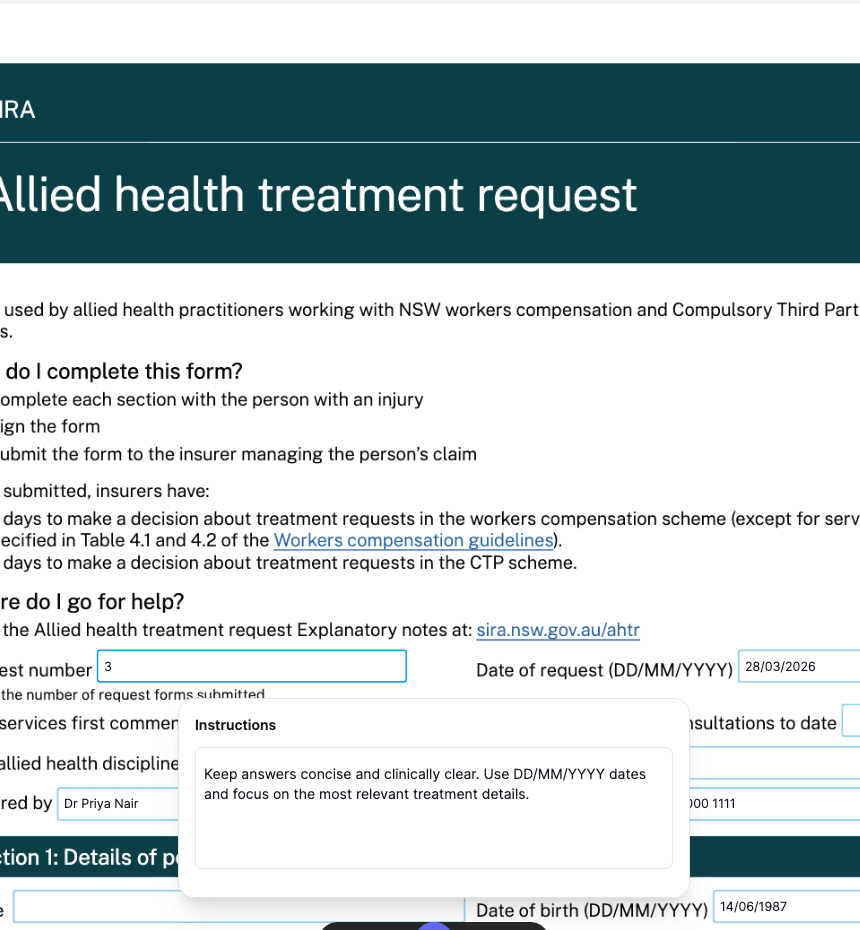
Add Instructions for This Form
If you use the same form regularly, you can save instructions to guide how Everbility fills it.
For example, you can ask Everbility to:
- keep answers short and clear
- use your preferred wording
- follow a particular date format
- mention only the most relevant information
Click Instructions, type what you want, then click Save as default if you want to reuse those instructions each time you open that form.
Fill All Fields or Just the Ones You Choose
To fill the whole form, click AI Fill.
If you only want Everbility to update part of the form, click Select fields first.
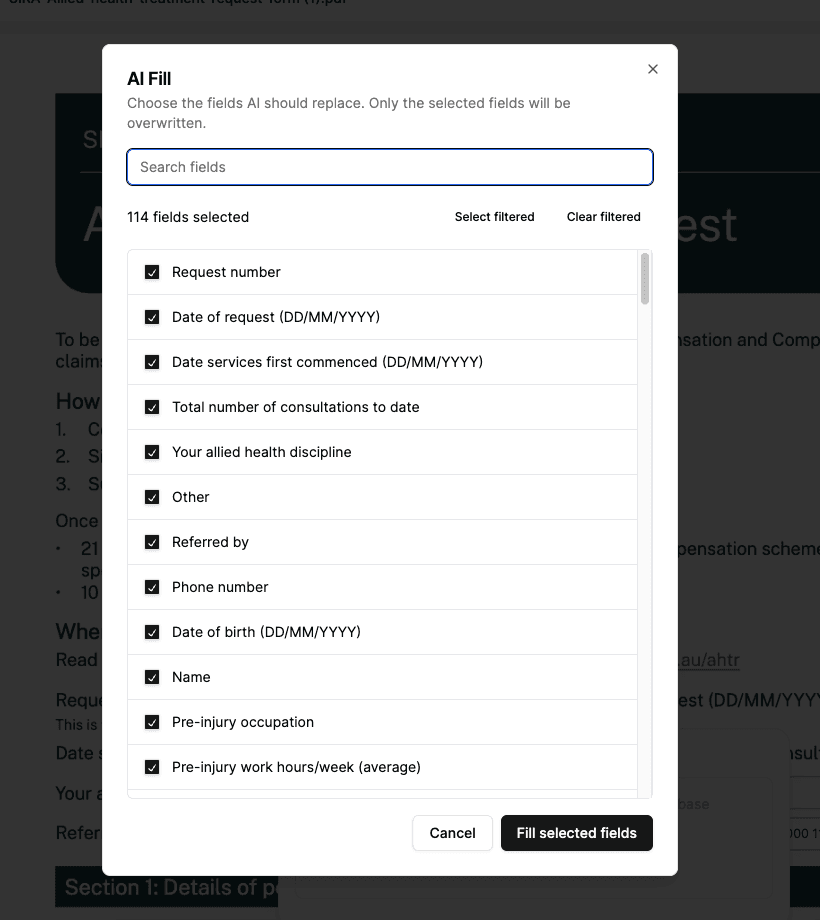
From here you can:
- search for a field by name
- untick any fields you do not want replaced
- fill only the selected fields
Everbility will then prepare the client context, fill the selected fields, and save the updates into the form.
Some fields, such as signatures, may still need to be completed manually.
Review, Edit and Download
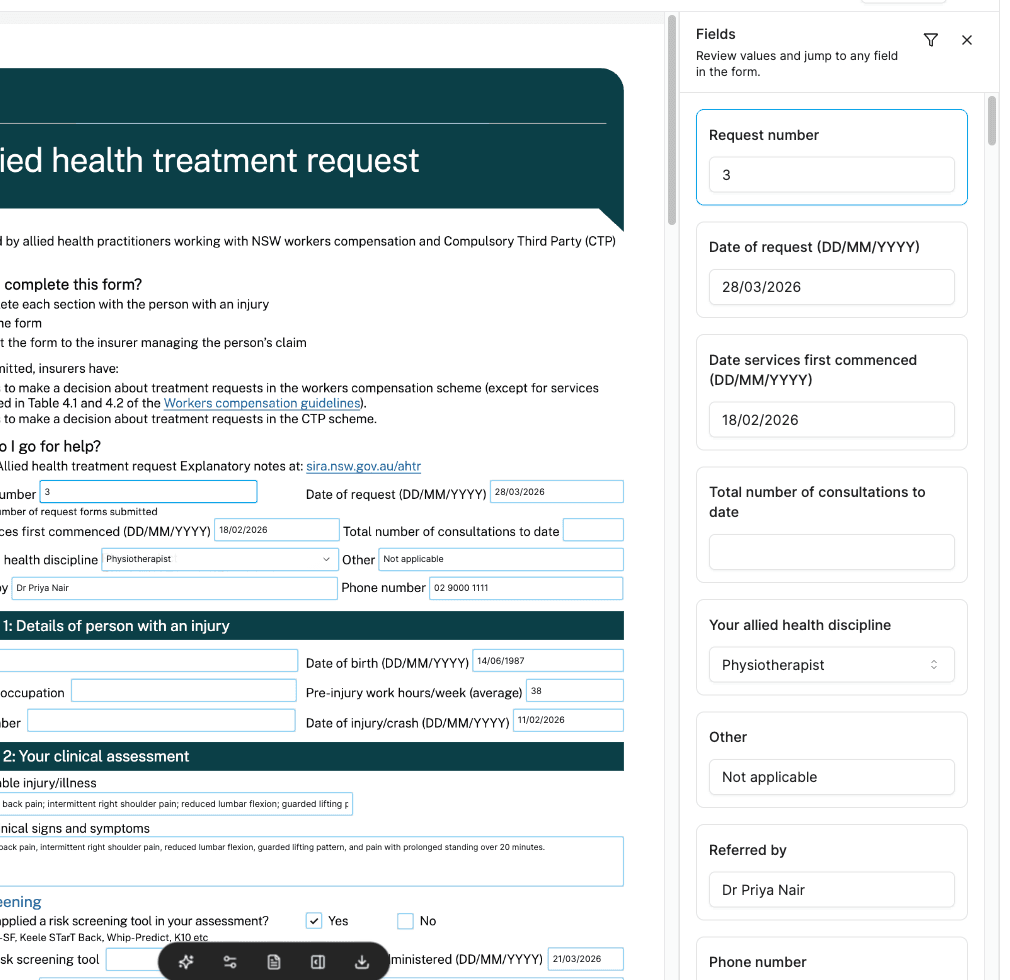
Click Review to open the field list on the right side of the screen.
Using the SIRA form example below, this makes it easier to:
- quickly scan what was filled
- jump to a specific part of the form
- update any answer manually before you download
When you are happy with the form, click Download.
Everbility will generate the filled PDF and download it to your computer.
Tips
- If a field is not quite right, you can type over it manually before downloading.
- If you only want to update one part of the form, use
Select fieldsand run AI Fill again just for that section. - If you use the same PDF often, saving instructions as a default can make future forms faster and more consistent.
Feeling stuck? Book a demo here